# Getting started

## Toolbar

<figure><img src="/files/GsUFFb7wDPbb3qZiUzdT" alt=""><figcaption></figcaption></figure>

| Name                     | Description                                                                                                                                        |
| ------------------------ | -------------------------------------------------------------------------------------------------------------------------------------------------- |
| 🔍 Search field          | Quickly search for any assets in the open category                                                                                                 |
| 📋Change View            | Switches between grid and list view                                                                                                                |
| 🔄 Refresh               | Refreshes the editor. Useful if you just add a new icon to a asset, or if you created a new scriptable object outside Editor Pro window            |
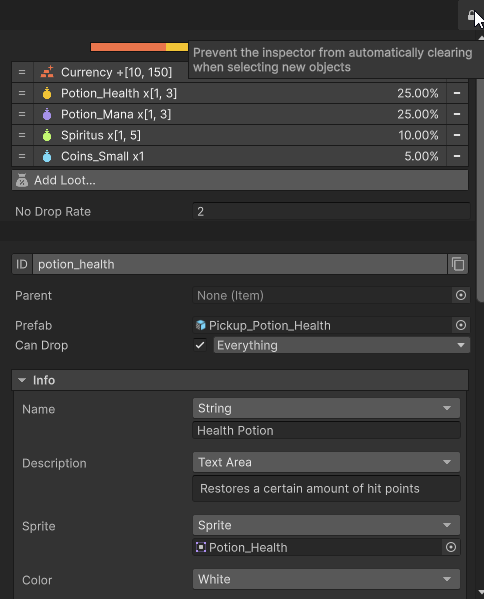
| 🔒 Lock/Unlock inspector | Locks/unlocks the custom inspector. Allows you to open different assets at the same time, even if they are different types in different categories |

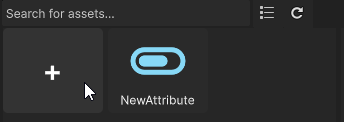
## Create a new asset by clicking on the + button&#x20;

<figure><img src="/files/opavqdYf0jVNa9rQpKcC" alt=""><figcaption></figcaption></figure>

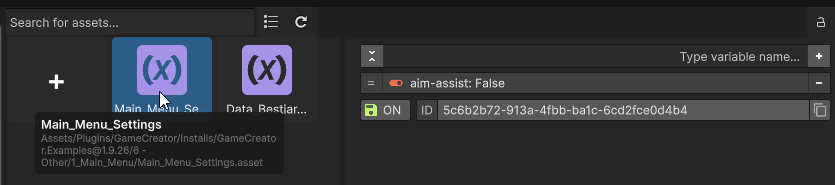
## Left click to open an item

<figure><img src="/files/LifjAppMTVEueWmeRCgg" alt=""><figcaption></figcaption></figure>

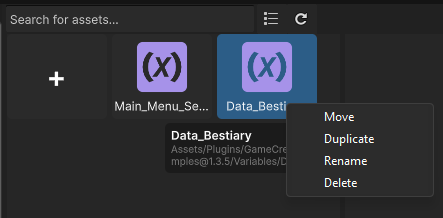
## Right-click an item to bring up the action menu

<figure><img src="/files/DodtHCyiewJy5Byi3wLT" alt=""><figcaption></figcaption></figure>

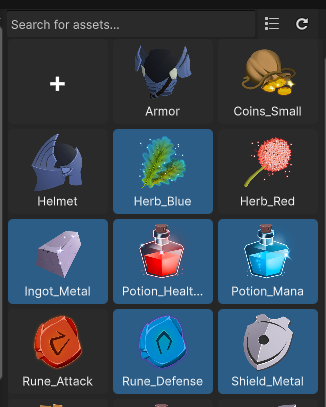
## Ctrl + Left-click to open multiple items at the same time

<figure><img src="/files/j0XDjUMW8KGWaJtGhKQD" alt=""><figcaption></figcaption></figure>

## Lock the inspector to keep it from clearing, allowing you to open multiple assets simultaneously, even different types from other categories.

<figure><img src="/files/GwBz8oZvResiGyj71R26" alt=""><figcaption></figcaption></figure>


---

# Agent Instructions: Querying This Documentation

If you need additional information that is not directly available in this page, you can query the documentation dynamically by asking a question.

Perform an HTTP GET request on the current page URL with the `ask` query parameter:

```
GET https://docs.fullscreen.no/info/game-creator-2-assets/editor-pro/setup-guide/getting-started.md?ask=<question>
```

The question should be specific, self-contained, and written in natural language.
The response will contain a direct answer to the question and relevant excerpts and sources from the documentation.

Use this mechanism when the answer is not explicitly present in the current page, you need clarification or additional context, or you want to retrieve related documentation sections.